Continuous Integration with Node.js, Heroku and GitLab CI/CD -Part 2.
In the last part, we able to set up our git repository on GitLab set up our Node app with Express and write one unit test.
In this part, we’ll cover the following:
- Setup of the app on Heroku
- GitLab CI/CD configuration using the
.gitlab-ci.ymlfile
GitLab repository:- https://gitlab.com/Mjeck/node-heroku-gitlab
That done next is to create our app on Heroku. If you don’t have an account yet navigate to https://heroku.com and create a free account. With that done log on to your Heroku dashboard and create a new app.
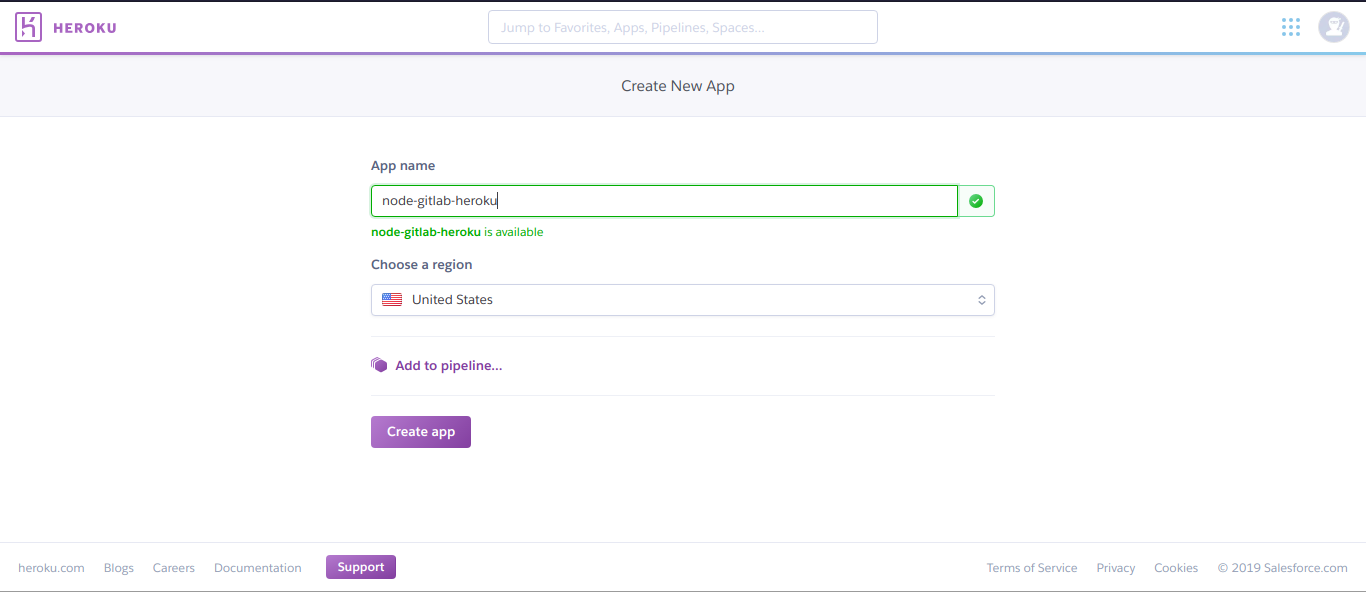
Next, we go to our project directory in our code editor and create a new file and
.gitlab-ci.yml paste the following code.# Node docker image on which this would be run
image: node:8.10.0
cache:
paths:
- node_modules/
stages:
- test
- deploy_production
# Job 1:
Test:
stage: test
script:
- npm install
- npm run test
# Job 2:
# Deploy to staging
Production:
image: ruby:latest
only:
- master
stage: deploy_production
script:
- apt-get update -qy
- apt-get install -y ruby-dev
- gem install dpl
- dpl --provider=heroku --app=$HEROKU_APP_NAME --api-key=$HEROKU_API_KEY
We added two jobs
test and deploy_production to run our test and deploy our app to Heroku. Both containing scripts to carry out there assigned tasks
In the above file on line 30, we defined two variables
YOUR_APP_NAME and HEROKU_API_KEY these two variables would be defined in our environmental variables on GitLab, where HEROKU_APP_NAME is the name of your app on Heroku and HEROKU_API_KEY been your user account API key on Heroku. Let’s go to our Heroku profile and copy our API key.
Click on the profile avatar and select
Account settings to navigate to your account page.

click on reveal to the API key, copy the key for we’ll use it while setting up our environmental variable on GitLab.
Navigate to the CI/CD settings page for your project and set the environmental variables for your project.

It’s
time to commit and push our work people to GitLab people. Go to your
project repository on GitLab and select CI/CD and select jobs. You
should see the current pipeline running, it should be something like
this.


You
can see our pipeline ran our test job first before running our
production job, you can click on any of the jobs to view details for
each job.
Now let's go to our app dashboard on Heroku and click on Open app on the top right corner.

So
we’ve successfully deployed our app on Heroku from our GitLab
environment. So below is the list of endpoints we created you can go
ahead and test them on Postman.
POST /api/addRequest Body: firstNumber, secondNumber
Comments
Post a Comment